
 Mohanad Alkhouli
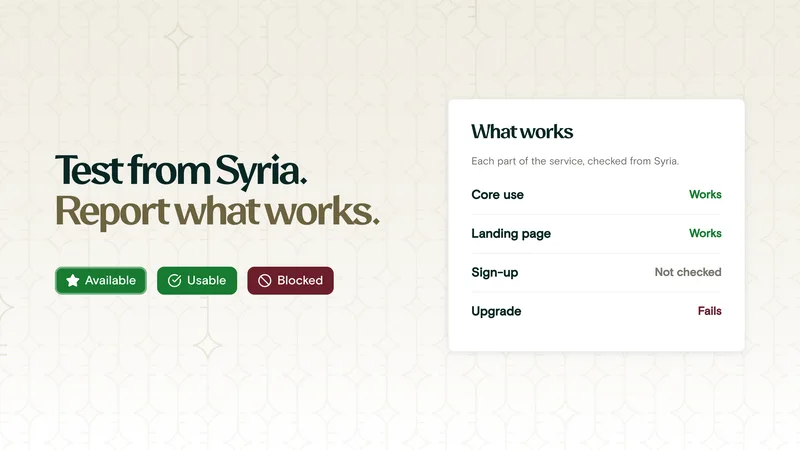
Every service on Unblock Syria has a What works list: its parts, such as signing up, signing in and paying, and whether each one works from Syria. You test those parts from inside Syria and report what happened. A reviewer checks your report, then updates the list. These results are what we show companies when we ask them to open access.
Before you start
- Be inside Syria.
- Turn off your VPN, and anything else that changes your location, such as proxy apps or the 1.1.1.1 app.
- Know how to take a screenshot:
| Device | Shortcut |
|---|---|
| Windows | Win + Shift + S |
| Mac | Cmd + Shift + 4 |
| Android | Power + Volume down |
| iPhone | Side button + Volume up |
Hide your personal data. Before you upload a screenshot, blur or crop out anything personal: your name, email, phone number, profile photo, address or card number. Keep it out of your notes too. We never need it to confirm a test.
Step 1: Pick a service
Open unblocksyria.com/services?needs_retesting=true. These services were last checked a long time ago, or never checked at all, so they need a fresh test the most.
- Needs retesting is on.
- Start with the first service and click View.
Step 2: See what is already known
- The status comes from the list below it:
- Available: every part in the list works.
- Usable: the main thing works, something else fails or is not checked yet.
- Blocked: the main thing does not work.
- Unknown: nobody has checked yet.
- Not checked means nobody has tested this part. Test these first.
- Check history shows earlier tests and their screenshots.
- Report a change opens the form you will fill in.
Earlier tests show you what to look for:
- Click Check history under a part to open its earlier tests.
- Each test shows its result and the date it was checked.
- Click the image icon to see the tester's screenshot.
- The note says exactly what the tester saw.
Step 3: Test each part
Open the service's website or app and try each part in the list. If the service has both, test the one you use and say which in your note. Test both if you can.
Take a screenshot the moment something works or fails.
| Part | Try to | It fails if |
|---|---|---|
| Core use | Do the main thing the service is for. For Google Gemini, that is asking a question and getting an answer. | It refuses, errors, or says it is not available in your country |
| Landing page | Open the home page | It does not load, or shows a block page instead |
| Sign-up | Create an account | You are refused, or Syria is not in the country list |
| Sign-in | Log in | Logging in is refused |
| One-time codes (OTP) | Get a verification code by SMS or email | The code never arrives, or a Syrian number is refused |
| Payment | Pay for something | The card or country is refused |
| Upgrade | Move to a paid plan | You are told you are not eligible |
| Downloads | Download the app or a file | The download is blocked or refused |
Other parts in the list work the same way: try it, then note what happened.
You never have to spend money. A refusal often appears before you pay, for example when Syria is missing from the country list, so report that. If you cannot get that far for free, leave the part on Not checked.
Rules for tricky results
- The page opens but says "not available in your country"? Landing page works, core use fails.
- The website does not load at all? Try the service's app instead and report what the app does. If there is no app, mark landing page and core use as fails.
- You can log in but not use the service? Sign-in works, core use fails.
- Did not try it? Leave it on Not checked. This never erases what someone else found.
A good screenshot shows the exact message and where it appeared:
Step 4: Fill in the report
Click Report a change on the service page. The form opens showing what we already know about each part. Change only the parts you tested.
- Your VPN must be off.
- These parts already show what we know. Leave them unless you tested them.
- Click Works or Fails for each part you tested. A box opens under it for your note and screenshot.
- Leave Not checked on anything you did not test.
Same result as before? Click the option that is already selected, then add your screenshot. Your report only includes the parts you click, so this is how you confirm a result is still true today.
For every part that fails, say what happened:
- Click Fails.
- Write what you did and copy the message word for word.
- Upload your screenshot.
Not "doesn't work", but: "Chrome on a laptop. Clicked Upgrade. It said: This account isn't eligible for Google AI plans."
Tested something that is not in the list?
- Choose it from Add a part you tried. It joins the list, and you mark it the same way.
- Nothing fits? Choose Something else and describe it in the note.
Step 5: Send
- Your email is optional and never shown.
- General note: your connection (Syriatel, MTN, ADSL or Wi-Fi), your device, app or website, and the date.
- Tick Verify you are human.
- Click Send report.
The Screenshots box above the checkbox is for anything that covers more than one part.
When it has gone through, you will see: "Thank you. A volunteer reviews every report before it changes the record." The service page will not update straight away, and there is no need to send it again.
Quick answers
I tested with my VPN on. Don't send it. Turn it off and test again.
It works on Wi-Fi but not on 4G. Report both, and say which was which in the note.
It works in the app but not on the website. Report what each one did, and say which is which in the note.
I see "Mark at least one as working or failing." You have not clicked any part yet. Click Works or Fails on at least one part you tested.